
How to use Quality Form Builder
A step-by-step guide to installing, setting up and getting the most out of Quality Form Builder on WordPress.
Plugins › Quality Form Builder › How to Use
Get up and running with Quality Form Builder.
Install & activate
Upload and activate Quality Form Builder; it appears under the QLG menu.
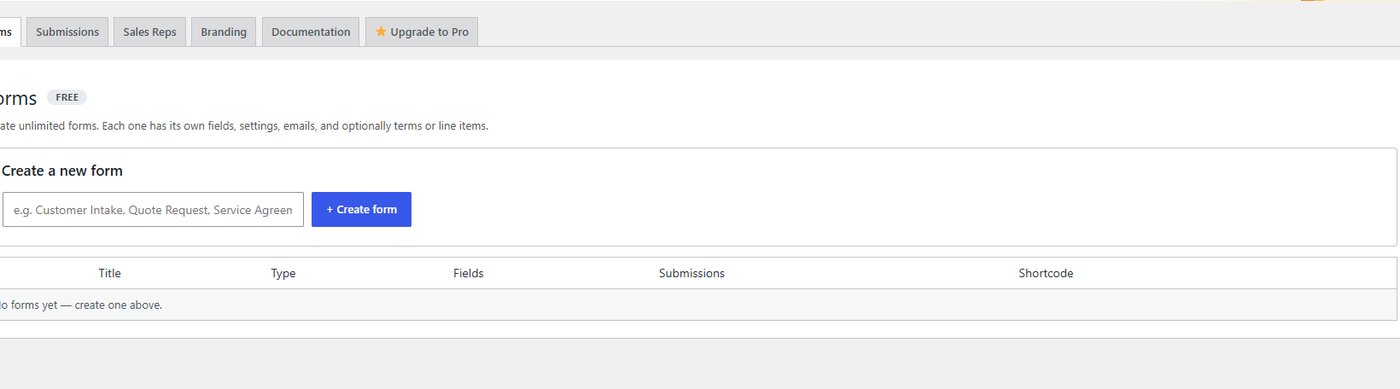
Build your first form
Add the fields you need — plus a quote calculator and an e-signature field for agreements. Everything is drag-and-drop.
Place it on a page
Drop the form onto any page or post with the block or the shortcode.
Manage submissions
Work leads from the submissions portal, sync entries to Google Sheets, and export any submission to a branded PDF.
Free vs Pro
Free covers one form and 25 submissions a month. Pro unlocks unlimited forms, the multi-rep portal, Google Sheets sync, PDF export, e-signatures and automated follow-ups.
Ready to put Quality Form Builder to work?
Start free and upgrade in place when you're ready — your license unlocks Pro instantly, no reinstall.
